
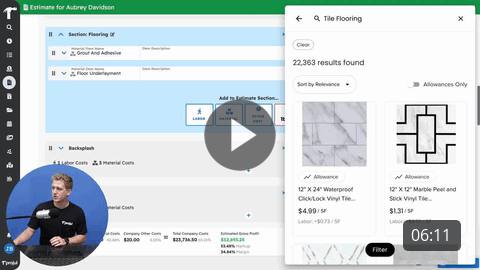
With the 1build integration, you can import cost line items into your estimates directly from 1build's live cost database.
Click on the link below to watch the 1build video or keep reading for written instructions!
Contents
Enabling 1build
To enable 1build in your account:
- Click on your initials in the bottom left corner
- Click on "Integrations"
- Select "Set up 1build"
The 1build settings will either show that your 1build is active, or display an orange "Get started" button. Click this button to either start a one week free trial of 1build or, if you have already done that, purchase 1build.
Using 1build
You can use 1build to add cost line items to your estimates. To start, navigate to an estimate that you would like to edit.
In the estimate, click on the 1build button at the bottom of the estimate to add 1build items in a new section, or click on the 1build icon at the bottom of an existing section to add 1build items to that section.
After clicking on the icon, a 1build sidebar will open. To start, enter your preferred location to get localized pricing data.
Using 1build makes it quick and easy to find and add cost line items to your estimate. Simply search for the the item that you would like to add to your estimate and select it.
With the item selected, choose whether to include the labor cost in addition to the material cost. The labor section can be opened to view a breakdown of the labor costs. The breakdown also has the option to include the burden cost, which is the insurance, benefits, and other overhead fees.
Once the desired options are selected, click "Add to Project" to add the cost line into the estimate.
Types of 1build items
When selecting items from 1build, there are three important type options.
- Allowances
- Assemblies
- Purchasable items
Allowances
Many items are marked as "Allowances" in 1build, meaning that the cost for that item is based the the average local cost for that item in the location selected.
Assemblies
Some items will also be marked as an "Assembly," meaning the costs include all of the necessary items to complete that aspect of the project.
Assemblies can be added to estimates in the same way allowances are, but they will be added as Projul assemblies if your account has access to the assemblies feature. (If you would like to know more about Projul assemblies, click here to watch our assemblies video!)
Purchasable items
If an item is not marked as an allowance or an assembly, that means that the item's price is not based on the average costs in your selected location. Instead, it means that the item can be shipped to you from the website listed with the item. In this case, there is a "Purchase" button that will take you to the website where the item can be purchased.
Updating 1build items in templates
As with standard cost line items in Projul, 1build cost line items can be saved as templates. As pricing changes over time, 1build lines in the templates can easily be updated to the most recent 1build pricing.
There are three types of templates that can be updated:
- Section Templates
- Estimate Templates
- Cost Line Templates
Section Templates
To update the 1build items saved in a section template to the most current prices, enter an estimate and apply the desired section template.
After the section template (with 1build items in it) has been applied to the estimate, scroll to the top of the estimate and click "Update 1build prices." This will update all 1build items in the current estimate, and it will also update 1build items for that template.
It will not change other estimates where this same template has been applied, even if the estimates are still in draft.
Estimate templates
To update the 1build items saved in an estimate template:
- Click on your initials in the bottom left corner
- Click on "Templates"
- Open "Estimate Templates"
- Click on the three dot menu next to the estimate template that you would like to update and select "Edit"
With the estimate template opened, click on the "Update 1build items" button to update the items in that template. Then, click "Save" at the bottom of the template to save the changes.
Cost Line Templates
1build items can also be saved as cost line templates in Projul. To update your cost line templates to the most current 1build pricing:
- Click on your initials in the bottom left corner
- Click on "Templates"
- Click "Manage Cost Templates"
- Click on the orange "Update 1build prices" button
Questions? Let's Chat.
support@projul.com
(844) 776-5853